Trip planning playbook
Guides
From first-trip basics to multi-week itineraries — practical help for packing, meals, camping, hotels and the road ahead. Pick a topic to read the full guide.

Guide 01
Planning your first trip
A first trip rarely fails because the destination was wrong. It fails because the dates, the overnight stops, and the “how do we get from A to B” were still fuzzy on the morning you left. Planning a trip really requires three decisions before you pack a single bag: when you are going, where you will sleep, and how far you are willing to drive in a day. Everything else — meals, fuel, activities — hangs off those three.
If you have never planned a road trip before, start smaller than the trip you daydream about. A long weekend within a few hours of home teaches you more than a three-week route you have not driven yet. You learn how long it takes to pack, how your vehicle feels when it is loaded, and whether you prefer a campground with showers or a quiet spot with a view. Those answers make the bigger trip easier later.
What “planned” actually means
A useful plan is not a minute-by-minute schedule. It is a short list of nights with a place name, an arrival day, and a departure day. Between those nights you need a rough idea of driving time, not a promise that you will leave at 7:04am.
Think in this order:
- Dates. Even rough dates change everything. School holidays, long weekends, and peak summer fill caravan parks. Free camps and rest areas fill too, just later in the day.
- The shape of the route. Out and back, a loop, or a one-way drive with a different way home. A loop usually feels more like a holiday. An out-and-back is easier when you are learning.
- Overnight stops, not every photo stop. You do not need a pin for every lookout. You do need a bed, a camp, or a park for each night.
- A daily driving limit you will actually keep. Four to five hours behind the wheel is a comfortable day for most people towing or travelling with children. Six hours is a long day. Eight hours is a relocation, not a holiday.
- One backup night. Weather, a full campground, or a tired driver should not leave you with nowhere to stop.
Write the trip in one sentence before you open a map. “Leave Friday after work, two nights on the coast, home Sunday afternoon.” If you cannot say it in one sentence, the trip is still an idea.
A simple first-trip example
Imagine a couple leaving a city on a Friday for the coast.
- Friday night: a caravan park or motel about three hours away, so you are not setting up camp in the dark on night one.
- Saturday: a short hop to a second place, with the afternoon free.
- Sunday: drive home, with a rest area planned around the halfway point for fuel and a walk.
That is a complete first trip. It has dates, two sleeps, a driving limit, and a rest stop. You can add a walk, a pub meal, or a beach after the bones are in place.
How to do it in PukuPlan
PukuPlan keeps that plan in one trip: the dates, the stops in order, the map, and a short summary of distance and driving time.
1. Open the trip area
On the home screen, tap Trip / Route Planning. You will see four useful cards:
- Find Locations — search free camps, camps, rest areas, station stays, hotels, and points of interest.
- Smart Trip Builder — describe a trip in plain English and let PukuPlan draft the stops. Handy once you know what you want. For a first trip, the manual planner below is easier to understand.
- Trip Planner — where your trips live.
- Join a Group Trip — for travelling with other people who also use PukuPlan. Skip this until you are comfortable with your own trip.
2. Create the trip
Tap Trip Planner. Under My Trips, tap New trip.
Fill in:
- Trip name — something you will recognise later, such as “Easter coast weekend”.
- Start date and End date.
- Notes — optional. A good place for “dogs coming” or “book the Friday park”.
Tap Create trip.
Your plan may limit how many days one trip can cover, and how many trips you can keep. If you are over a limit, PukuPlan says so on this screen. For a first weekend you will be well inside a normal plan.
3. Look at a finished example first, if you want
Under Trips shared with me you may see sample trips. Open one and look at the Itinerary, Map, and Summary tabs. They are there to show what a finished trip looks like. They are view-only for most people. Your own trip is the one under My Trips.
4. Add the overnight stops
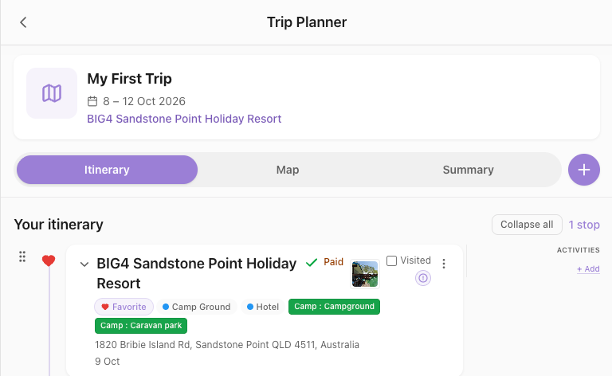
Open your new trip (the trip menu also has Plan route). You land on the route screen with three tabs: Itinerary, Map, and Summary.
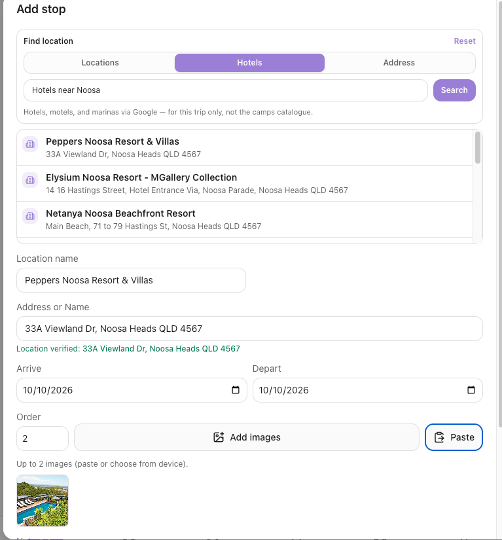
On Itinerary, tap Add stop.
Search in three ways:
- Locations — the camps and places catalogue (free camps, parks, rest areas, points of interest).
- Hotels — hotels, motels, and marinas for this trip. These are not added to the shared camps catalogue.
- Address — a street address, a place name, or your saved home.
Pick the place, then set Arrive and Depart. For a one-night stop, arrive Friday and depart Saturday. For two nights, depart the morning you leave.
Add the next night the same way. Drag a stop by its handle to change the order if you add them out of sequence.
5. Read the trip back to yourself
Open Summary. You should see the stops in order, the date span, and — once the route has calculated — distance and time on the road. Open in Google Maps sends the same driving route to Google Maps when you want turn-by-turn on the day.
If the summary feels too long for the number of days, drop a stop or split a long drive with a rest area. Rest areas are covered in the fuel and rest-stops guide.
6. Only then add the extras
From a stop’s menu (the actions on that stop) you can Edit Stop, Enter Fuel Cost, and Manage Activities. Activities are the things you want to do at that place — a walk, a market, a swim — not extra overnight stops.
Packing and meals are separate guides. Do them after the nights exist. A packing list with no trip dates is just a cupboard inventory.
Camping trips vs international hotel trips
The first-trip steps above are the same whether you are heading to the coast in a caravan or flying into a city for hotels. What changes is where the nights come from.
| Camping / road-trip nights | International / hotel nights | |
|---|---|---|
| Search tab | Locations — free camps, parks, rest areas, and the camps catalogue | Hotels — hotels, motels, and marinas worldwide for this trip |
| Catalogue | Shared camps catalogue (AU/NZ and related places) | Hotel search for the trip; not mixed into the camps catalogue |
| Day plans | Activities still hang on a stop | Same — Manage Activities on each city stop |
| Drafting | Smart Trip Builder with Camps (and parks in the wording) | Smart Trip Builder with Hotels / Motels, city names in the request |
If your first trip is camping or a mix of parks and free camps, stay on this guide, then use the packing and meals guides. If your first trip is cities, flights, and hotel nights — or you need day activities in each city — open International Travel / Hotels / Activities next. That guide covers the Hotels tab, international destinations, and attaching activities to hotel stops without turning every museum into an overnight pin.
You can mix both kinds of night on one itinerary. A coastal road trip with a motel on night one still starts here; a Europe city hop lives mainly in the international guide.
A first-trip checklist
- One sentence that describes the trip.
- Start date and end date on the trip.
- One overnight stop per night, with arrive and depart dates.
- No driving day that you already know you will hate.
- Summary tab glanced at before you pack.
- The “nice to do” list left until the route feels calm.
When that list is ticked, you have planned your first trip. The rest of PukuPlan — packing, meals, pantry, fuel — fills in around this route. It does not replace it.
Guide 02
International Travel / Hotels / Activities
Camping catalogues and hotel nights are different tools for different beds. International travel in PukuPlan still starts with a trip, dates, and stops in order — but the nights usually come from the Hotels search, and the days are filled with Activities on those stops rather than free-camp chips and rest-area filters.
Use this guide when you are planning city stays, flights into a region, motels between regions, marinas, or a holiday where the “camp” is a hotel lobby. Use the first-trip guide for the shared bones (create the trip, read Summary). Use the free camping vs caravan parks guide when the night is a camp or park from the Locations catalogue.
What changes for an international or hotel-led trip
- Nights are hotels (and similar), not free camps. You search under Hotels on Add stop. Those places belong to this trip; they are not written into the shared camps catalogue.
- The map is still the truth. Arrive and depart dates on each hotel stop build the itinerary. A second night in the same hotel is a later Depart date, not a duplicate stop.
- Activities sit on the stop. A museum, walking tour, or dinner reservation is Manage Activities on that city’s hotel stop — not a new overnight pin for every outing.
- Smart Trip Builder can draft hotel nights. In Optional preferences, use Accommodation Types such as Hotels, Motels, Backpacker, or Boat Anchorages, and say the cities in plain English in Your trip request.
Packing and meals still matter (a suitcase list and a few restaurant nights), but the spine of an international trip is hotel nights plus day activities.
A simple hotel-trip example
Imagine five nights in two cities after a flight.
- Night 1–2: hotel in the first city (arrive day one, depart morning of day three).
- Day activities on that stop: old town walk, one paid attraction.
- Night 3–4: hotel in the second city.
- Night 5: motel near the airport for an early flight.
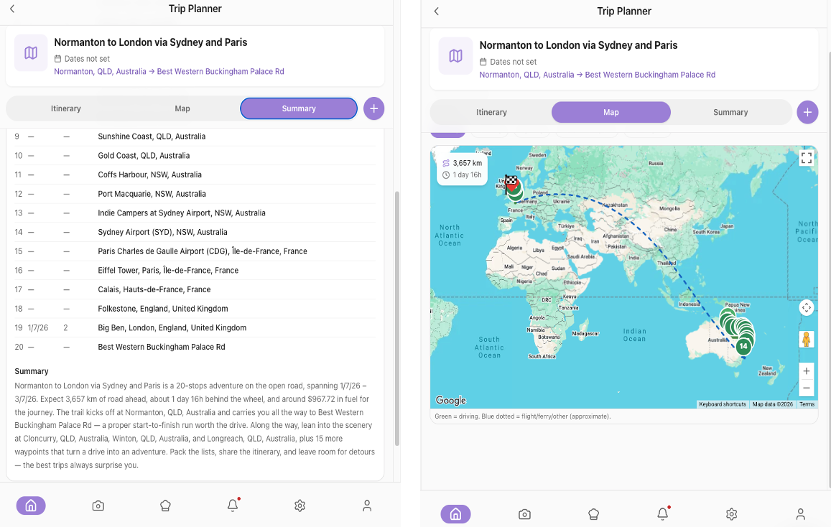
That is a complete hotel-led trip: dates, beds, and a short activity list. Driving legs between cities still show on Summary when the route calculates — useful for flight and/or car days.
How to do it in PukuPlan
1. Create the trip the same way
Trip / Route Planning → Trip Planner → New trip. Set Trip name, Start date, End date, and optional Notes (“flights booked”, “no hire car days 3–4”). Create trip.
2. Add hotel nights with the Hotels tab
Open the trip → Itinerary → Add stop → Hotels.
Search the city or hotel name. Pick the place, then set Arrive and Depart. For two nights, arrive Monday and depart Wednesday. Add the next city the same way. Drag the handle if you added stops out of order.
Use Address when you have a private stay or a place that does not appear in hotel search. Use Locations only when a night really is a camp, rest area, or catalogue place — not for a normal city hotel.
3. Attach activities to each stay
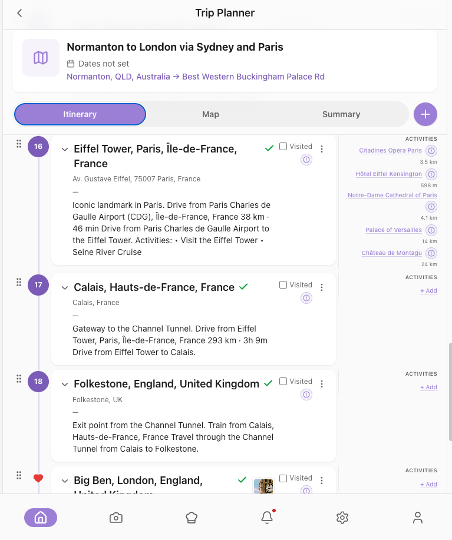
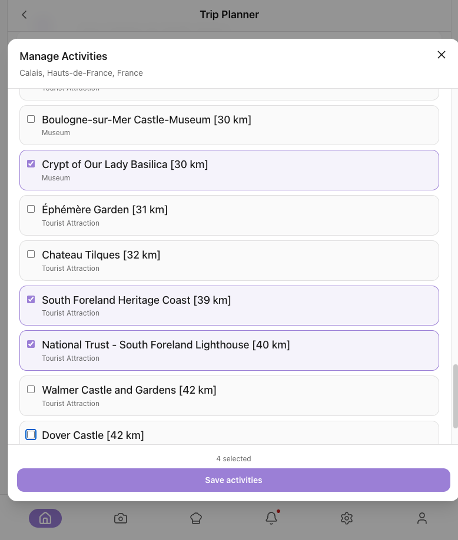
On a hotel stop, open the stop menu → Manage Activities. Add the walks, tours, and bookings that belong to that city stay. Keep overnight geography on the itinerary; keep “what we will do” on activities.
For ideas you are not ready to pin to a trip, Activities & Wishlist → Wishlist Manager holds places and activities until you move them onto a real stop.
4. Draft a multi-city trip in words (optional)
Trip / Route Planning → Smart Trip Builder.
In Your trip request, write the cities, month, who is travelling, and the kind of beds: “ten days in September, Rome then Florence then Venice, hotels, short train days, include a few walking activities.”
Open Optional preferences:
- Departure date and Completion Date
- Max Drive Time if you will hire a car; keep train days honest in the wording if not
- Route style — Balanced is a sensible default
- Accommodation Types — tick Hotels and/or Motels (add Backpacker or Boat Anchorages if that is the trip)
- Include Activities if you want suggested day plans, or Stops Only if you will add activities yourself
Build Draft, lock the stops you trust, Refine if needed, then Build Trip from Draft. Check every hotel night by hand. A draft does not book a room.
5. Read Summary, then pack and meals
Summary still shows order, dates, and distance/time when the route has calculated. Open in Google Maps helps on hire-car days.
Then use the packing checklist guide for a suitcase-style list, and the meals guide if you are self-catering some nights. Hotel breakfasts and restaurant dinners can stay light in the meal planner — the nights on the itinerary matter more than a seven-day camp kitchen.
International trip checklist
- Trip dates cover every hotel night.
- Each night has a Hotels (or deliberate Address) stop with arrive and depart.
- Activities hang on the city stop, not as fake overnight pins.
- Smart Trip Builder preferences match hotels if you used a draft.
- Summary glanced at before you book non-refundable rooms elsewhere.
- Packing and meals opened only after the hotel spine feels calm.
When that list is ticked, the international spine is in PukuPlan. Bookings still happen with the hotel or airline — the app holds the plan you travel with.
Guide 03
Building a trip packing checklist
Packing for a trip is not the same as owning camping gear. Most people who “forget something important” did not forget it at home. They packed for a different trip than the one they are actually taking: a summer list in autumn, a caravan list for a tent, or a food bag with no can opener because the meals were planned later.
A good packing checklist is a list of decisions, grouped so you can pack in the real world: the kitchen box, the bed, the clothes, the tools, the documents. It should be short enough that you will tick it on the morning you leave, and specific enough that “camping stuff” is not a line.
Build the list from the trip, not from the shed
Start with four questions:
- Where are you sleeping? Tent, swag, camper trailer, caravan, or a mix of parks and motels. A motel night deletes half the camp kitchen.
- How are you cooking? Full camp kitchen, a single burner, or meals bought along the way. The meal plan and the packing list should agree.
- What is the weather doing at the destination, not at home? Coast, high country, and desert on the same month need different bags.
- What already lives in the vehicle? Many travellers keep a “always in the van” set: leads, levelling ramps, basic tools, a first-aid kit. Those items should be on the list so you confirm them, but they should not be packed from the house every time.
Then group items the way you will pack them. Typical groups that work on the road:
- Sleep and shelter
- Kitchen and food tools
- Clothes
- Bathroom and first aid
- Power and light
- Tools and vehicle
- Documents and money
- Kids’ or pets’ gear, if they are coming
Inside each group, name the thing you will look for. “Head torch” is a packing item. “Be prepared” is not.
Leave room for food. Food belongs on the list too, but it is easier to add after the meals exist, so you are not guessing jars and packets. PukuPlan can pull meal-plan items onto the packing list; that step is in the meals guide and again below.
Pack once, then tick every trip
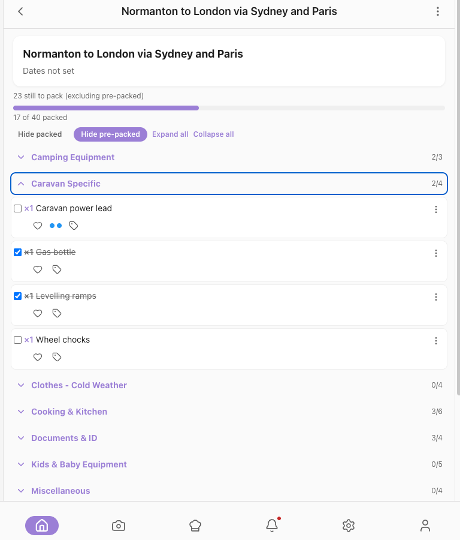
The list should survive the trip. Next time you leave, you do not rewrite it. You clear the ticks and walk through it again. Items that stay in the van can be marked as already packed, so the morning list is only the things still in the house.
A list that is never ticked is a document. A list that is ticked in the driveway is a checklist.
How to do it in PukuPlan
Each trip has its own packing list. The catalogue of common items is shared; the ticks belong to that trip.
1. Open lists
On the home screen, tap Lists & Packing.
- My Trip Lists opens your trips so you can edit the checklist for one of them.
- Browse template catalog is the cupboard of common camping and holiday items (well over 200). Use it to steal ideas, or add items from inside a trip list.
- Shared lists is not available yet. Skip it.
You can also open the list from the trip itself. In Trip Planner, open the menu on your trip and tap Add Packing List (empty) or Edit Packing List (already started).
2. Add the standard gear
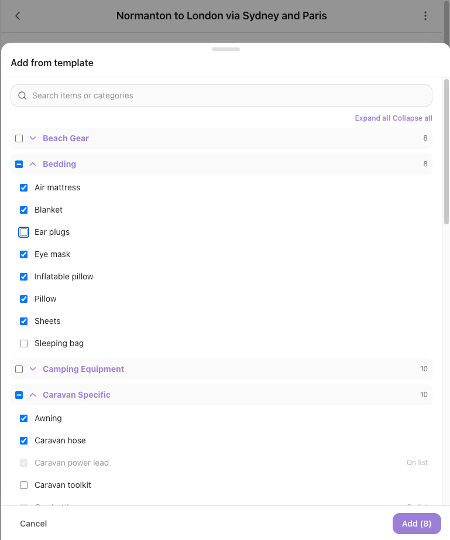
On the packing list, use Add from template (also in the more-actions menu). Search or browse by category, tick the items you need, and add them. Do this in a first pass: sleep, kitchen, clothes, bathroom, tools. You can add more later.
3. Add the things that are yours alone
Add custom item is for anything that is not in the catalogue: a particular medication, a child’s comfort toy, the fishing licence, the van’s water-filler key. Give it a name and a category so it sits with similar items.
4. Set quantities
Tap an item’s quantity and set how many you are taking. The list shows this as a count beside the name, such as ×2. Two head torches and one tent is a safer list than three lines that all say “torch”.
5. Mark what already lives in the vehicle
Open the item actions and choose Mark pre-packed for gear that stays in the caravan or car. Those lines stay on the list so you still see them, but they are not a “go and find this in the house” job. Not pre-packed puts them back into the normal pack.
6. Bring food gear and meal items across
When a meal schedule exists, use Import from meal schedule (the more-actions menu calls this Add from meal schedule). That is how the packing list learns about the food and the tools the meals assume, instead of you retyping “rice” and “tongs”.
7. Pack on the day
Tick items as they go into the vehicle. Hide packed clears the finished lines from view so you only see what is left. If everything visible is done, the screen says so.
Before the next trip, Clear all checked unticks the list for a fresh packing run. Pre-packed items stay marked, so you are not starting from a blank page.
Favourites and tags are optional. Mark favorite keeps often-used items easy to spot. Tags are useful when one trip has a fishing day and a bushwalk and you want to filter. You do not need either for a solid first list.
A packing pass that takes about twenty minutes
- Answer the four questions at the top (sleep, cook, weather, what stays in the van).
- Add template items for those answers only. Resist the whole catalogue.
- Add five to ten custom lines that are personal.
- Mark the van’s permanent kit as pre-packed.
- Import the meal schedule once meals exist.
- On departure morning, tick what is left. Hide packed so the list shrinks.
If the list is longer than you will tick, it is too long. Cut it before the trip, not in the driveway.
Guide 04
How to plan meals for an extended camping trip
On a weekend away you can live on whatever is in the esky and one meal out. On a trip of a week or more, meals become a logistics problem: how much fresh food will last, what can sit in a box without a fridge, which nights you will be too tired to cook, and how many times you are willing to find a supermarket.
Planning meals for an extended camping trip really requires you to plan the rhythm, not a restaurant menu. Most happy camp cooks use a repeating pattern:
- A few proper cooks you know by heart (a curry, a pasta, a one-pot stew).
- A default breakfast and lunch that barely change (oats, eggs, wraps, cheese and crackers).
- One or two “no cook” nights after long drives.
- A restock day lined up with a town, not with the most beautiful campsite.
Fresh meat, milk, and soft vegetables usually want a cold esky or fridge and a plan to eat them in the first few days. Rice, pasta, tins, tortillas, nuts, and hard cheese travel further. If you only have a small fridge, do not plan seven different dinners that each need a unique fresh ingredient.
Work backwards from the nights
Lay the trip out by night before you choose recipes.
| Night | Drive day? | Cooking setup | Meal idea |
|---|---|---|---|
| 1 | Long | Tired | No-cook or a park kitchen |
| 2–3 | Short | Full camp kitchen | The meals that use fresh meat |
| 4 | Restock town | — | Shop, then simple dinner |
| 5–7 | Mixed | One burner | Pantry meals: rice, tins, eggs |
That table is the whole skill. Recipes fill the cells. They do not come first.
Then write a shop once, from the meals, and subtract what you already have at home or in the van. The shop is a consequence of the plan. If you shop first and plan later, you will carry food you do not cook.
Water and fuel for the stove are part of the meal plan. A brilliant pasta on a night with an empty gas bottle is just dry pasta.
Keep it kinder than a home week
At home you might cook something new every night. On the road, repetition is a feature. The same breakfast for six days is not boring when you are packing up camp. It is one less decision.
Aim for:
- Breakfast: one pattern.
- Lunch: one pattern, plus fruit or a bought bakery treat.
- Dinner: three recipes, rotated, plus one meal out or a barbecue pack.
- Snacks: planned, or they become the reason you stop at every servo.
If children or dietary needs are in the group, put those meals on paper first. They are the ones you cannot “just grab” in a small town.
How to do it in PukuPlan
Meals live under Meal Planning on the home screen. The trip route is separate. Plan the nights on the trip first so you know how many dinners you need, then build the food.
1. Open Meal Planning
Tap Meal Planning. The cards are:
- Scan Item — send a barcode to the shopping list or the pantry.
- Shop — the shopping list.
- Pantry — what you already have (the name of the active pantry is on the card).
- Recipes — browse and save recipes.
- Meal Planner — where the week is built.
The first time you open this area, PukuPlan may set up a starter meal-planning template. Let that finish.
2. Create a schedule that matches the trip
Tap Meal Planner, then Meal Plans.
If you have no schedule yet, tap Create schedule. Name it after the trip (“Coast week meals”) and set the start and end so they match the trip dates as closely as your plan allows. The number of days you can schedule depends on your subscription; the screen tells you the limit.
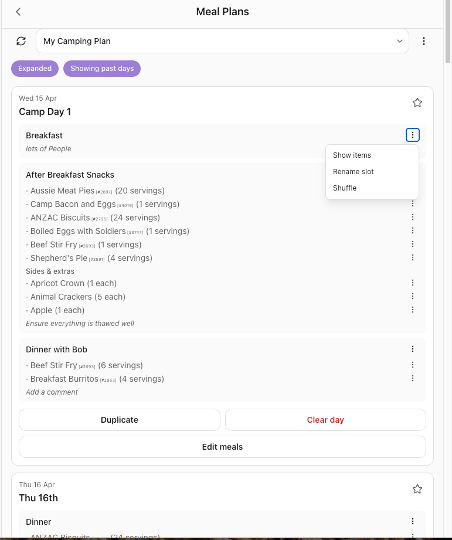
A schedule is the calendar. Inside each day you add slots. The usual ones are Breakfast, Lunch, and Dinner. Use Add slot if you also want snacks.
3. Fill slots with food you will actually cook
Add a recipe or a simple side to a slot. For an extended trip, repeat the same breakfast across the days instead of inventing seven breakfasts. Duplicate schedule can copy a finished pattern when you want a second block of similar days. Duplicating a long schedule can take a few minutes; leave the screen open until it finishes.
Random Meal is useful when you are stuck for one dinner and want a recipe you have already saved. Pantry Meal Pick (also listed under the pantry as Meal needs) starts from what you already hold, which is the right tool in the second half of a trip when the shops are behind you.
4. Turn the plan into a shop
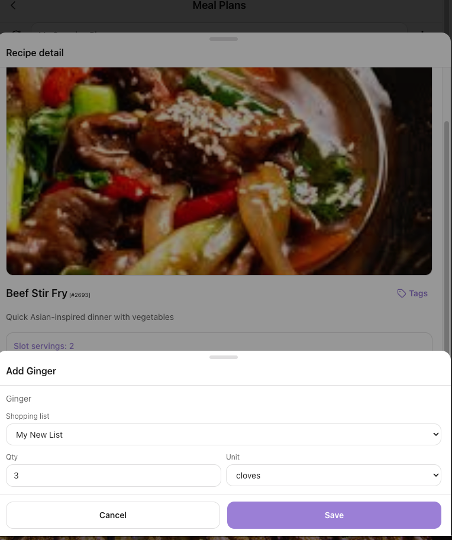
Open Recipes and the recipe you used. When its ingredients are linked, you can add those ingredients to a shopping list. You need a shopping list first: go to Shop and create one if the app asks you to.
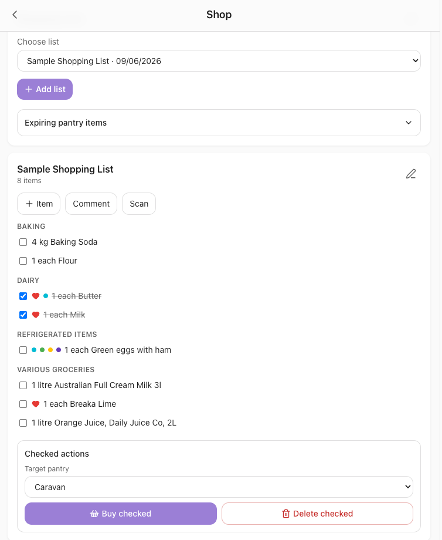
On Shop, tick lines as you buy them. At the bottom, Checked actions lets you choose a Target pantry and tap Buy checked. Bought food then sits in that pantry — home, before you leave, or the van pantry, once you are on the road. The pantry guide covers how to keep more than one pantry.
5. Put the food on the packing list
Back on the trip’s packing list, choose Import from meal schedule. The meals and the packing list then describe the same trip. Pack the billies, the gas, and the food together, and tick them on the morning you leave.
A meal plan you can finish in one sitting
- Count the nights on the trip.
- Mark the long-drive nights as easy meals.
- Mark one town day as the restock.
- Choose one breakfast, one lunch, and three dinners.
- Create that as a PukuPlan schedule with Breakfast, Lunch, and Dinner slots.
- Push ingredients to Shop, buy them into the right pantry, and import the schedule into the packing list.
If you only do steps 1 to 4 on paper, you are already ahead of most extended trips. PukuPlan is there so the paper list becomes the shop and the bag, and so you can see what is still in the pantry when day five arrives.
Guide 05
Managing pantry food while travelling
At home, a pantry is a cupboard you walk past every day. On the road, “the pantry” might be a caravan cupboard, a plastic tub, an esky, and a shopping bag behind the passenger seat. Food goes missing in that split. You buy rice because you think you are out, then find two packets in the tub. Or you plan a meal around cheese that was finished two camps ago.
Managing pantry food while travelling means knowing three things at any moment: what is with you, what is about to go off, and what you still need to buy. It also means deciding which stock lives at home and which stock is on the trip. Mixing those two lists is how people shop for a kitchen they are not standing in.
Split home food and travel food
Before a long trip, picture two piles.
Stay at home. Bulk stores, the everyday fridge, anything you will not eat in the next fortnight.
Goes in the vehicle. The meals for the first stretch, plus a small backup of tins, rice, pasta, oil, tea, and snacks. This pile should match the meal plan, not the entire cupboard.
Give each pile a name you will remember: “Home” and “Van”, or “Home” and “Esky”. When you shop the night before, bought items should land in the van pile. When you shop in a town on day four, those items should land in the van pile too. The home pile stays still until you are back.
On the road, the rules get simpler
- Eat the clock first. Use Expiring soon thinking: soft vegetables, fresh meat, opened dairy, and bread before the tins.
- Restock against the meals ahead, not against an empty feeling. If the next three dinners are pasta, rice, and a tin curry, you need those things. You do not need a trolley that looks like a weekly home shop.
- Write it down when you use the last of something. The last tea bag is not memorable at the next supermarket unless it is on a list.
- One person owns the food list. In a couple or a family, two people adding “we need milk” from memory will buy four litres.
A pantry record is only useful if it changes when the food changes. Scanning or ticking as you pack and as you cook is enough. A perfect inventory you update once a month is not.
How to do it in PukuPlan
PukuPlan can keep more than one pantry. One active pantry is “where you are looking” when you scan, shop, or plan a meal from what you have.
1. Name the pantries to match real places
Open Settings (the bottom bar), then Pantry. This opens Pantry Configuration.
Rename the first pantry to something like Home. Tap Add pantry for the van, the esky, or the camp box, and rename that too. You can add pantries up to the number your plan allows. Deleting a pantry removes its active items, so only delete one you truly do not want.
2. Switch before you add food
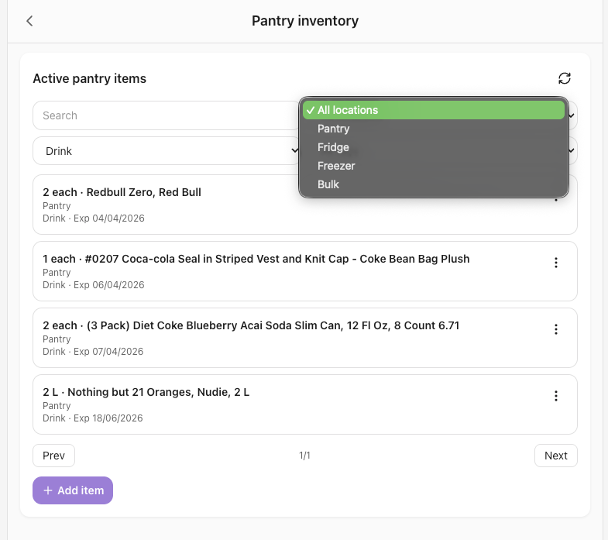
The active pantry is the one that receives scans and the one you are viewing. On Meal Planning, the card reads Pantry - followed by the active name. On the Pantry screen, the chip in the header cycles pantries. Tap it until you are on Van before you scan the food that is going in the van.
There is also a pantry switcher at the bottom of Meal Planning. Use it so you do not file van food into Home by mistake.
3. See what you hold
Open Meal Planning, then the Pantry card. Inside Pantry:
- Pantry inventory — view and edit what is in the active pantry.
- Expiring soon — items nearing their date. Check this the evening before a drive day and eat those foods next.
- Scan multiple items — collect barcodes and restock the active pantry. Useful when you unpack a shop into the van.
- Meal needs — plan meals from what that pantry actually contains. This is the “what can we cook tonight?” button.
4. Shop into the right pantry
Scan Item on Meal Planning can send a product to the shopping list or the pantry.
On Shop, build or open a list, add what the meal plan needs, and tick lines as they go in the trolley. Under Checked actions, set Target pantry to Van (or Home, if you are stocking the house). Tap Buy checked. Those items move into that pantry. Delete checked removes ticked lines without adding them to a pantry — use that only when you ticked something you are not keeping.
From a pantry item you can also Add to shopping list when you notice you are low, so the next town shop is already started.
5. Let the meals and the pantry talk
Pantry Meal Pick (under Meal Planner, and Meal needs under Pantry) suggests cooking from the active pantry. Halfway through a trip, switch to the van pantry first, then pick meals. You will cook what is in the cupboard instead of what you wish were in the cupboard.
A routine that stays true on the road
The night before you leave
- Active pantry: Van.
- Buy the trip shop into Van with Buy checked.
- Glance at Expiring soon and put those foods in the first two dinners.
Each cook
- If you finish an item, update the inventory or add it to the shopping list while the pot is still on.
Each town stop
- Switch to the van pantry, look at Meal needs or the next days of the meal schedule, add only the gaps to Shop, then Buy checked back into the van pantry.
When you get home
- Switch back to Home.
- Anything still in the van that is coming inside can be re-counted into Home so the next trip does not inherit a ghost inventory.
The goal is not a perfect stocktake. The goal is that “what is for dinner?” and “what do we buy in the next town?” can be answered from the same place.
Guide 06
Planning fuel and rest stops on a road trip
Fuel and rest are the same problem. You need to stop before the tank is anxious and before the driver is. On a familiar highway you can feel this. On a new route — especially inland, across a range, or towing — the map’s total distance hides the long gaps.
Planning fuel and rest stops really requires you to know three numbers, even roughly:
- How far you can comfortably drive in a day, in hours more than kilometres. Hours include traffic, roadworks, and the slower pace of a loaded car or a caravan.
- How far the vehicle goes on a tank when it is loaded for the trip, not the figure from an empty commute. Towing and roof boxes change this.
- Where the next reliable fuel is, and where you will get out of the seat even if you do not need fuel.
A rest stop is successful when it is chosen before you are desperate. A servo you reach with the fuel light on was not planned. It was endured.
Place the stops on the day, not only on the map
For each driving day, mark:
- A break around the two-hour point. Walk, toilet, water, swap drivers if you can. This can be a rest area, a town, or a servo.
- Fuel before the long empty stretch, not in the middle of it. If the next 250 kilometres have one roadhouse, buy fuel before you enter that stretch, while you still have a choice.
- The overnight stop early enough that you are not setting up, cooking, and arguing about a campsite in the dark.
Rest areas are for safety and rhythm. They are not always places to sleep. Some allow overnight stays and some do not. Read the place, not just the pin. A proper overnight stop still belongs on the night plan. A rest area belongs on the driving day.
If you are towing, add time. A “three-hour” leg in a car can be four hours with a van, plus a slower fuel stop. Your daily limit should be the towing day, not the car day you remember.
Keep a note of what you pay per litre when the price surprises you. After a few trips you stop guessing the national average and start using the price you actually pay in the regions you drive.
How to do it in PukuPlan
PukuPlan can estimate fuel cost for a route, record the price you paid at a stop, and help you drop rest areas and fuel towns onto the itinerary.
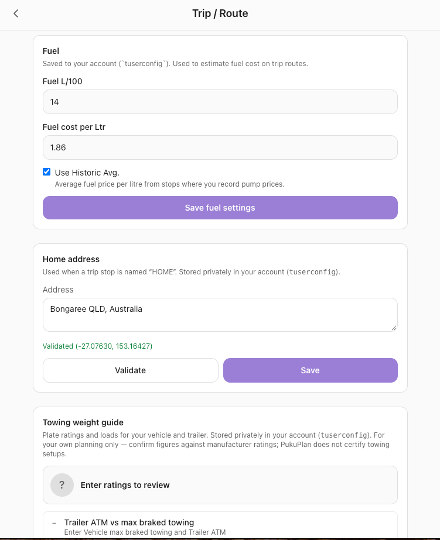
1. Tell PukuPlan how your vehicle drinks
Open Settings, then Trip / Route.
In the Fuel panel set:
- Fuel L/100 — litres per 100 kilometres for this vehicle as you travel. If you tow, use the towing figure, not the best car-only figure. A placeholder like 12.5 is only a start; replace it with your own.
- Fuel cost per Ltr — a price per litre you are happy to plan with, such as 1.95.
- Use Historic Avg. — turn this on once you have recorded real pump prices at stops. PukuPlan then averages those prices instead of the single number you typed.
Tap Save fuel settings.
Until fuel is set, route summaries cannot price the trip. Set it once; it stays on your account.
2. Put home on the map if the trip starts there
On the same Trip / Route settings screen, the Home address panel is the address PukuPlan can use when you add a stop at home. Enter the address, tap Validate, then save. You want to see a confirmed location, not only the words you typed.
3. Build the driving day out of stops
Open the trip’s Itinerary and tap Add stop.
For a rest break or a servo:
- Locations, then the Rest Areas chip, or search the town or roadhouse by name. Free, Camping, and Near Me are the other quick chips. Filters narrows by state, region, distance, place type, and cost.
- Address, if you know the servo or town and it is not in the catalogue.
- Hotels, only if the “rest” is actually a night in a motel.
Set Arrive and Depart on the same day for a short stop, and give overnight stops their real nights. Drag stops into the order you will drive them.
4. Read distance, time, and fuel
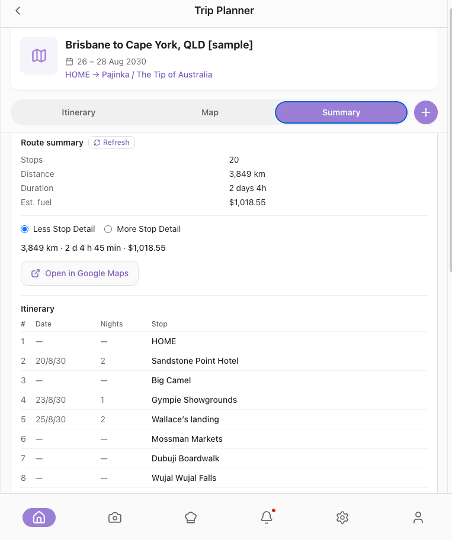
Open Summary. When the route has calculated, you see distance, time, and a fuel estimate based on your L/100 and price. The itinerary table lists stops in order with dates. Legs between stops can show distance and a fuel figure for that hop, which is the right place to notice a leg that is too long or too expensive.
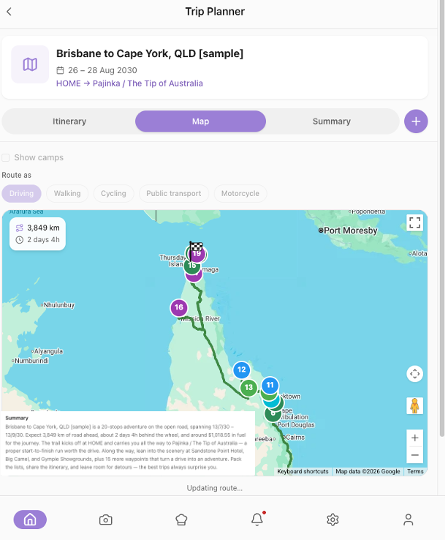
Open in Google Maps is the handoff for navigation. The Map tab shows the same route. Route as offers Driving, Walking, Cycling, Public transport, and Motorcycle; Driving is the one that runs. Show camps on the map helps you see catalogue camps near the line if you need another overnight option.
5. Record what you actually paid
On a stop, open the stop menu and tap Enter Fuel Cost. Enter the price per litre and the date, then Save.
Do this at the stops where you fill up. If Use Historic Avg. is on, later trip estimates use those real prices. You are building your own fuel memory instead of trusting a single national guess.
6. Cap the day when you are drafting with Smart Trip Builder
If you use Smart Trip Builder, open Optional preferences and set Max Drive Time (hours per day) before you tap Build Draft. Choose a Route style of Balanced, Scenic, or Fastest. Then check the draft the same way: long days still need a human to insert a rest stop.
A fuel-and-rest pass for one driving day
- Set Fuel L/100 and a price per litre once.
- Look at the day’s kilometres and hours on Summary.
- If any hop is longer than you want to sit, add a Rest Areas stop in between and put it in order.
- Add fuel in a town before a lonely stretch.
- After you fill up, Enter Fuel Cost on that stop.
The estimate will never match the bowser to the cent. Wind, hills, a headwind on a van, and a detour all move it. The point of the plan is that you decided where to stop while you were still calm.
Guide 07
Free camping vs caravan parks: trip-planning considerations
Free camping and a caravan park are not two versions of the same night. They change how you pack, how you arrive, what you pay, and how tired you are allowed to be.
A free camp usually means you bring more of your own life with you: water, power, toilet plan, rubbish, and often a shorter list of neighbours. A caravan park usually means you pay for someone else’s water, power, toilets, and a patch of ground that is already organised. Many trips are better with both. The mistake is treating every night as if it were the same kind of night.
What you are really choosing
Free and low-cost camps reward travellers who are happy to be self-contained and who arrive with time to spare. They can be beautiful and quiet. They can also be full by mid-afternoon in school holidays, soft after rain, or short on toilets. “Free” sometimes means a permit, a donation, or a time limit. Read the place. A pretty name is not a promise.
Caravan and holiday parks cost more and usually give you a booking, a shower, drinking water, and a way to charge things. They are the right night after a long drive, in bad weather, when you need to do washing, or when you are still learning. They are also the right night when you need to be near a town for fuel and food.
Station stays and showgrounds sit between the two. You are often paying a modest fee for a paddock, a shower block, or a powered site, sometimes with a farm shop or a yarn at the office. Plan them like a park if you have booked, and like a camp if facilities are basic.
Rest areas are a third thing again. Some are fine for a break and a legal overnight where the signs allow it. They are a poor substitute for a planned camp when you wanted a fire, a swim, or a quiet morning.
Think about each night against a short list:
| Question | Free camp leans yes when… | Caravan park leans yes when… |
|---|---|---|
| How long was the drive? | The day was short enough to arrive in daylight | The day was long, hot, or late |
| Water and power | You can last the night without a tap or a powered site | You need to recharge, refill, or shower |
| Bookings | You can move on if it is full | You want a site held for you |
| Weather | The track and the ground are sound | You want a formed site and an amenities block |
| Budget | You are saving fees for a longer trip | One paid night will save a bad night |
| Rubbish and toilet | You can carry both out | You want facilities on site |
A strong pattern for a first longer trip is paid or booked nights on the arrival day and before a city, and freer nights in the middle when you are in a rhythm.
Money is not the only cost
A free night that costs you a two-hour detour, a stressed arrival, and a poor sleep is not free. A park fee that includes power and a hot shower can be the cheapest way to keep a holiday feeling like a holiday.
If you care about the fee, look at it per night across the whole trip, not per site in isolation. Five free nights and two park nights is a different budget from seven park nights. Write both down before you decide the trip is “a free-camping trip” or “a parks trip”. Most real trips are a mix, and the mix is the plan.
How to do it in PukuPlan
The camps catalogue is there so you can see the kind of night, not only a pin.
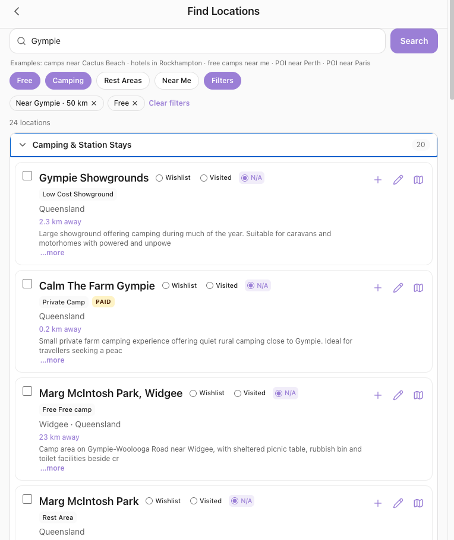
1. Search like a person choosing a night
Trip / Route Planning, then Find Locations.
The quick chips under the search box:
- Free — lean the results toward free stays.
- Camping — camps and camping places, without mixing in unrelated points of interest.
- Rest Areas — breaks and rest areas, not a full camp kitchen plan.
- Near Me — around where you are now.
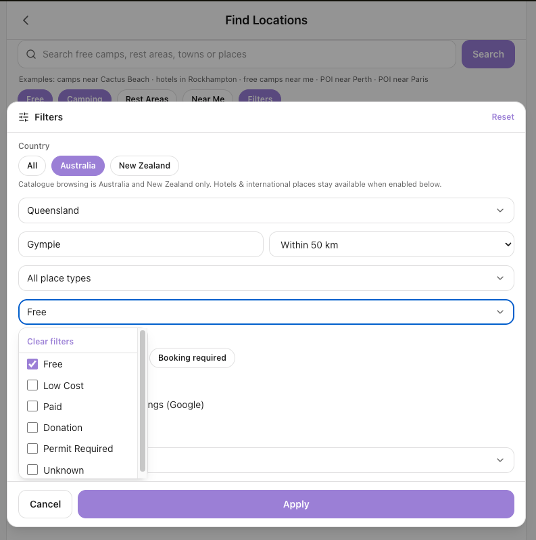
- Filters — the detailed controls.
In Filters you can set state, a region or town, distance, place type, and Cost. Cost includes Free, Low Cost, Paid, Donation, Permit Required, and Unknown. You can also filter Booking available and Booking required when you need a site you can hold.
Search in words too. Asking for free camping near a town is a normal way to start. If you want a park, search the town and leave Free off, or set Cost to Paid.
Each result carries a cost label such as Free, Paid, Low Cost, Donation, or Permit Required. Cost unknown means you should check another source before you rely on it. On a place that people pay for, you can look at recent fee notes from other travellers and add what you paid, so the next person is not guessing.
2. Add the night to the trip as that kind of stop
From the trip Itinerary, Add stop, then Locations, and use the same chips and filters. Pick the place and set Arrive and Depart.
Use Hotels only for a hotel, motel, or marina night. Use Address for a private stay or a place that is not in the catalogue.
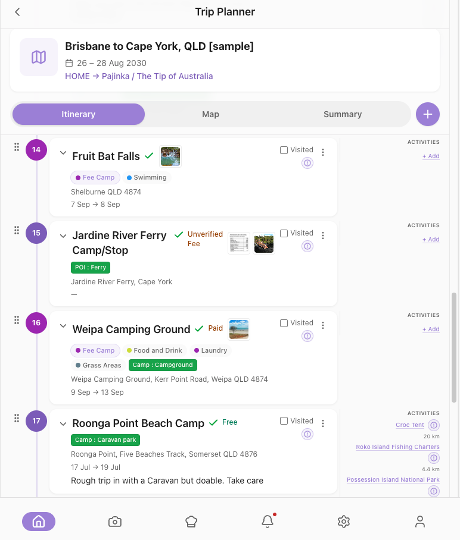
A free camp and a park can sit on the same itinerary. Give the park the night you will arrive late. Give the free camp the night you can arrive in daylight and leave without needing a tap.
3. Let the route show the mix
On Summary, read the nights in order. If you see three free camps in a row, ask the water, power, and toilet questions before you leave home. If you see a park, that is your restock, shower, and charge night — put the big shop and the laundry on that date in your head, and in the meal plan.
4. If you are drafting the whole trip in words
In Smart Trip Builder, open Optional preferences, then Accommodation Types, and tick Camps when you want camp nights. Add Hotels or Motels if some nights should be indoors. Say the mix in Your trip request in ordinary language: “two nights in caravan parks on the way up, then free camps for three nights, then a motel before the city.” Name a park or camp if you already love it. The draft is a suggestion. Lock the stops you trust, then Build Trip from Draft. Check fees again on Find Locations before you travel. An automated draft does not book the site and does not know tonight’s crowd.
A practical mix for a week
- Night 1: caravan park or motel, booked if it is a long arrival day.
- Nights 2–4: free or low-cost camps you have checked for access and facilities.
- Night 5: a park or town stop for fuel, water, and a shop.
- Last night: whatever gets you home sane the next morning.
Put that pattern on the itinerary first. The catalogue helps you find the places. It does not decide which kind of night you need. You do.
Guide 08
Planning an off-grid camping trip
Off-grid, in ordinary traveller language, means a night where you do not lean on a powered site, a tap at your elbow, or a shop at the gate. The power you use was in the battery or the sun. The water you use was in the tanks or the containers. The toilet plan was yours. The next fuel and the next drinking water might be a long way down the road.
That can be the best camping there is. It is a bad surprise if you only planned the view.
Planning an off-grid trip really requires you to size the limits before you fall in love with the place: power, water, waste, food, access, and how long you can stay if one of those runs low. “Off-grid” is not a vibe. It is a budget of litres, amp-hours, and days.
The five budgets
Power. What must run (fridge, lights, phones, medical devices) and what can wait (hair dryer, extra lights, a second fridge). A sunny day and a shaded camp are different power days. If you are unsure, plan fewer electric meals and a torch that is not your phone.
Water. Drinking, cooking, washing up, and a little for washing you. Many people underestimate cooking and dishes. Carry more than the optimistic number, and know where the next drinking water is before you drive past it.
Waste. Rubbish comes out with you. Toilet waste needs a plan that matches the place: a park toilet on the way in, a cassette, or whatever the site allows. Do not assume a pit toilet because the photos looked bushy.
Food. Off-grid nights favour food that does not need a big shop halfway through: tins, rice, pasta, eggs, hard cheese, and fresh food timed for the first nights while the ice or the fridge is at its best. This is the same rhythm as the extended meal guide, with fewer “we’ll duck to the shops” escapes.
Access. The last kilometres decide the trip. Unsealed roads, sand, creek crossings, and a low caravan are not details to discover at dusk. If you are new to the track, plan to arrive early, and have a turn-around in mind. A caravan or trailer also has a weight story: what the vehicle may tow, what the trailer weighs, and what you have loaded on top of that. Guessing is how people end up overloaded and unhappy.
Weather sits across all five. Rain changes dirt roads and creek crossings. Heat changes water and fridge load. Wind changes how well you sleep and how you cook.
A sensible off-grid plan states a maximum stay: “two nights, and we leave if water or the track looks wrong.” Open-ended stays are for people who already know the place.
What to decide before you leave home
- How many nights without a tap or a powered site.
- Litres of water per person per day, then a spare container.
- Which meals need the stove only, and whether you have enough gas.
- The fridge’s job: what must stay cold, and what can live in a box.
- The road in: sealed to the gate, or a dirt track you have checked recently.
- A “leave early” rule for wind, rain, or a full site.
- Someone at home who knows the rough area and the day you expect to have phone service again. Coverage is often part of off-grid, even when you did not plan it that way.
How to do it in PukuPlan
PukuPlan will not measure your tanks or certify your tow bar. It will hold the route, the kind of camp, the food, the packing list, and a safety list so those budgets are written down before you go.
1. Choose places that match an off-grid night
Trip / Route Planning → Find Locations.
Use Free and Camping, or search the region and set Filters → Cost to Free, Low Cost, or Donation. Turn Free off when you want the town night before or after — that town night is part of the off-grid plan, because it is where you fill water, fuel, and the fridge.
Read the cost label and the place type. A free camp is not automatically suitable for your vehicle. Check length, access, and facilities in the place details, and with a current local source, before you treat it as a two-night stay.
Add the stops from the trip with Add stop → Locations. Put a town, servo, or park before the off-grid nights, with time to fill everything. Set Arrive and Depart so the off-grid stay has a planned end, not a shrug.
2. Say the constraints when you use Smart Trip Builder
In Your trip request, write them in normal language: “self-contained camper, free camps, no more than four hours’ drive a day, avoid rough unsealed roads, two nights off-grid then a caravan park to refill water.”
Open Optional preferences:
- Max Drive Time — keep it modest. Off-grid arrivals want daylight.
- Route style — Balanced or Scenic. Fastest will not protect a dirt-road preference.
- Accommodation Types → Camps for the off-grid nights. Add a park-style night in the written request for the refill stop.
- Stop detail — Stops Only if you do not want the draft to invent activities. Include Activities if you do.
There is no on-screen tick for “avoid unsealed roads” at the moment. Put that in the words of the request, then read the draft and delete any stop you would not drive. Lock only the stops you have checked, then Build Trip from Draft.
3. Pack the off-grid kit as its own list
On the trip packing list, Add from template for the camp basics, then Add custom item for the things templates never quite match: extra water containers, gas canister count, levelling boards, a shovel, tyre pressures for dirt, the toilet chemicals, the solar lead, the fridge cover.
Mark pre-packed for what already lives in the camper. Import from meal schedule once the meals are the off-grid meals, so you are not packing fresh herbs for a kitchen you will not have.
4. Write the safety items down
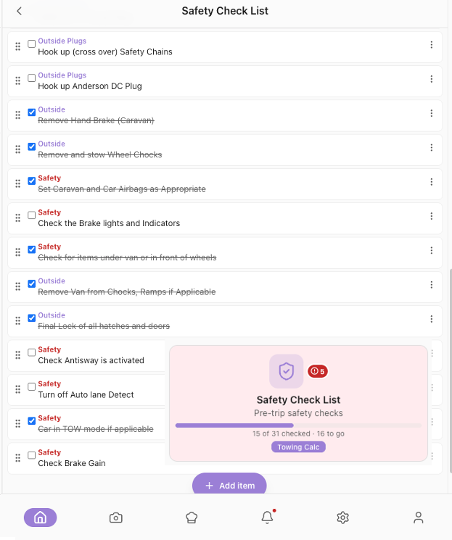
On the home screen, open Safety Check List. Tick the checks that matter for this trip: wheel nuts, lights, tyre pressures, jack, water, gas, medications, a told-someone plan. Add your own lines if the stock list does not mention your setup.
If you tow, tap Towing Calc on that screen (it opens Settings → Trip / Route, at the Towing weight guide). Enter the vehicle and trailer figures you are planning with, including the travelling load and the people. Save towing weights. The screen compares your numbers and shows Within your entered figures or Review suggested. It is a planning aid. It does not certify the combination. Your plates and your manufacturer’s ratings do.
5. Fuel and food for the gap
Set Fuel L/100 to the loaded or towing figure (Settings → Trip / Route → Fuel). Read the Summary fuel estimate for the whole route, and make sure a fuel stop exists before the lonely section.
Point the meal schedule and the van pantry at those same days. Expiring soon tells you what to eat before you leave phone range and shops behind.
Leave with the budgets written down
- Nights off-grid: a number, with an end date on the stop.
- Water and power: enough for that number, plus a margin.
- A town stop before you go in, and a plan for rubbish and toilet waste on the way out.
- Meals that match the stove and the fridge you really have.
- Safety list ticked, and towing figures saved if you tow.
- A person who knows where you are headed and when you expect to be back in range.
Off-grid camping feels free because the days are quiet. The planning is what keeps it quiet.
Guide 09
Creating a multi-week itinerary
A weekend plan is a list of nights. A multi-week itinerary is a pace. The people who enjoy long trips are rarely the ones who saw the most places. They are the ones who did not drive every day, who put a slow day after a long one, and who left some days blank on purpose.
Creating a multi-week itinerary really requires you to decide the spine first: the start, the furthest point, the way home, and the days you refuse to drive. The famous stops hang on that spine. If you start with twelve must-see places, the drive between them will quietly become the holiday.
Shape the weeks before the days
Try this on paper, in four passes.
Pass 1 — the envelope. How many days are you actually away, including the drive home? A “three-week trip” that starts on a Saturday and ends on a Sunday is sixteen days, not twenty-one. Count the nights.
Pass 2 — the rhythm. A pattern that wears well:
- Two or three driving days, then a day you do not move the camp.
- A town day about once a week for fuel, water, food, and laundry.
- No long drive on the day after a late night.
- The longest or loneliest leg not on day one and not on the day you need to be home for work.
Pass 3 — the anchors. Two to five places you care about, with the nights you want there. Everything else is connective tissue: a camp or a park at a sensible distance.
Pass 4 — the slack. At least a couple of nights with no booking and no emotional commitment, so a closed road, a lovely river, or a tired child can change the plan without wrecking it.
Distance totals lie. A 3,000-kilometre loop sounds reasonable until you divide it by the days you are willing to drive. If you only want to drive on half the days, and you want those days under five hours, you have just designed a smaller trip. That is a success, not a compromise. Shrink the map until the pace is kind.
What to pin down, and what to leave loose
Pin down
- Start and end dates.
- The nights where you need a booking (weekends, school holidays, popular parks, anything with a ferry or an event).
- The refill rhythm: fuel, water, food, roughly weekly.
- The “we are back in phone range” days if part of the trip is remote.
Leave loose
- Lookouts, short walks, and “we’ll see on the day”.
- The exact camp on a slack night. Carry two options within an easy drive.
- Meals beyond the repeating pattern. A multi-week menu that is unique every night will exhaust the cook. Repeat it.
Share the spine with anyone travelling with you before you add the pretty pins. Two people can love the same trip and still need different driving days. Agree the driving limit in hours, out loud.
How to do it in PukuPlan
The trip is still one trip. The discipline is in the dates on the stops and in reading the summary before you add another pin.
1. Create the trip at the real length
Trip / Route Planning → Trip Planner → New trip.
Set Start date and End date to the full span. If your plan has a maximum number of days, PukuPlan will tell you and adjust the end date. Name the trip for the whole journey, not for the first town.
Notes can hold the pace you agreed: “drive days under 5 hours, town day every Sunday.”
2. Draft it in words if the map feels too big
Smart Trip Builder is built for this. In Your trip request, describe the loop, the month, who is travelling, the driving limit, and the kind of nights. Example shape, not a script: “Three weeks in July, start and end at home, up the coast and back inland, caravan, about four hours’ drive on travel days, a night off the road every few days, mix of caravan parks and free camps.”
Open Optional preferences and set:
- Departure date and Completion Date
- Max Drive Time
- Route style — Balanced is the right default; Scenic if the drive is the point; Fastest only for the bits you want over with
- Accommodation Types — Camps, plus Hotels or Motels if some nights are indoors
- Include Activities or Stops Only
Name any park or camp you already want: the tip on that screen is to name them (“two nights at …”). Tap Build Draft.
Read the draft as a sceptic. Lock a stop (the padlock) only when it is verified and you want it in the trip. Unlocked stops are not built in. Refine updates the draft from edits to your request and keeps locked stops. Build Trip from Draft creates the real trip. You need at least one locked stop.
Then open that trip and fix it by hand. A draft is a first sketch of a multi-week pace, not the finished itinerary.
3. Or build it by hand, anchor first
On Itinerary, Add stop for the anchors only: home or the start, the far point, the town days, the booked parks. Set Arrive and Depart. A rest day is the same place with a later depart date — you do not add a second stop for “day off”.
Then fill the gaps with camps and rest areas from Locations, using Free, Camping, or Rest Areas, and Filters for state, region, and cost. Drag stops to reorder them.
4. Use Summary as the honesty check
Summary shows the stops in order, the date span, and the distance, time, and fuel estimate when the route is calculated. If the total time on the road does not match the pace you wrote in Notes, remove a stop or add a rest day before you add a single lookout.
The Map tab is where a detour becomes obvious. Show camps if you need a different overnight near the line.
5. Hang food, packing, and activities on the spine
- Meal schedule for the same dates, with a repeating pattern and a shop on the town days (Meal Planner → Meal Plans).
- Packing list imported from that schedule, plus the gear for the way you are sleeping.
- Manage Activities on a stop for the walks and visits you care about. Do not turn every activity into an overnight stop.
6. If other people are coming
Trip / Route Planning → Join a Group Trip is how someone else joins with an invite code. Share the trip when the spine is stable, not while every stop is still moving, or you will plan it twice.
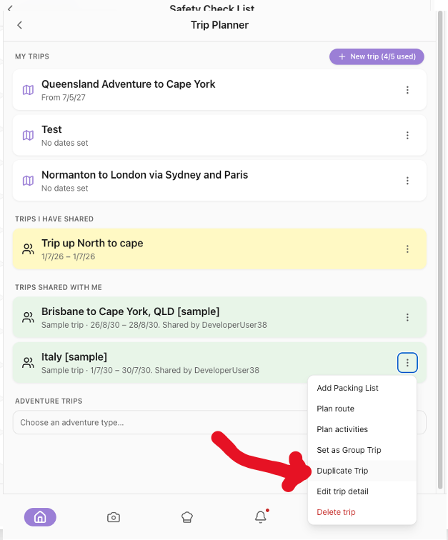
The trip menu can Duplicate Trip when you want a second copy to experiment with — a slower version, or a version without the inland leg — without wrecking the original. The copy gets its own name and starts private.
Before you call a long itinerary finished
- Night count matches the dates.
- Some days do not move camp.
- Booked nights are the ones that will actually be full, not every night.
- A town rhythm exists for fuel, water, and food.
- Summary distance and hours still feel like a holiday.
- Slack remains: at least one stretch you can change without a phone call.
A multi-week itinerary is finished when you can describe the pace in a sentence. The place names are the detail. The pace is the plan.
Guide 10
How PukuPlan's trip-planning workflow works.
PukuPlan is a place to keep one trip together: where you will sleep, what the drive looks like, what you will pack, what you will eat, and what you should check before you roll out. It is not a single magic map. The workflow is a sequence. If you follow the sequence, the later steps are easy. If you start in the middle — shopping before you know the nights, or packing before you know if you are in a tent or a park — you will redo the work.
This guide walks that sequence the way a traveller actually uses it, with the names you will see on the screen. The earlier guides go deep on one slice. This one is the map of the whole job.
The idea in one page
You do six jobs, in this order:
- Decide the trip — dates, pace, and the kind of nights.
- Put the nights on a route — stops in order, with arrive and depart dates.
- Check the drive — distance, time, fuel, and rest.
- Plan the food — a simple meal rhythm, a shop, a pantry.
- Pack against that trip — a checklist you can tick.
- Do the leaving checks — safety, towing if you tow, and a last look at the summary.
You can stop after step 2 and already have a useful plan. Steps 3 to 6 are what make a longer trip feel calm.
1. Start from the home screen
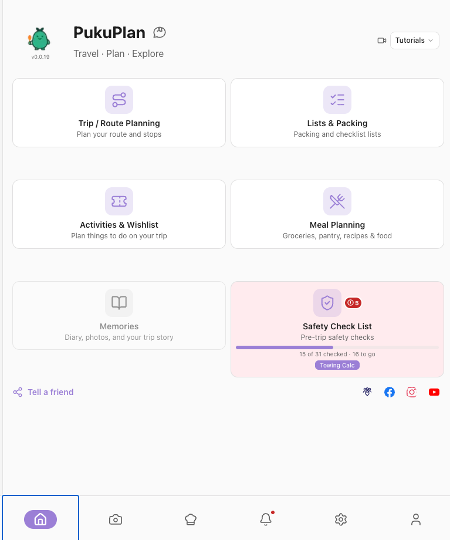
The home screen is a set of tiles:
- Trip / Route Planning — the route and the stops.
- Lists & Packing — checklists for each trip.
- Activities & Wishlist — things to do, and places you want to remember.
- Meal Planning — shop, pantry, recipes, and the meal planner.
- Memories — diary and photos. This tile is not ready for everyday use yet, so do not plan around it.
- Safety Check List — the checks before you leave. Towing Calc sits on this tile and opens your towing figures.
Settings in the bottom bar holds the numbers the trip needs: pantry names, fuel use, home address, and towing weights.
2. Create the trip, or let a draft create it
Trip / Route Planning → Trip Planner → New trip.
You enter a Trip name, Start date, End date, and optional Notes. Create trip makes the trip and gives it a packing list to grow into. Your trips sit under My Trips. Trips other people have shared, and the sample trips you can look at, sit under Trips shared with me. Open a sample if you want to see a finished Itinerary, Map, and Summary before you build your own.
The menu on your trip includes Plan route, Add Packing List or Edit Packing List, Edit trip detail, and Duplicate Trip when you want a private copy to try a different pace.
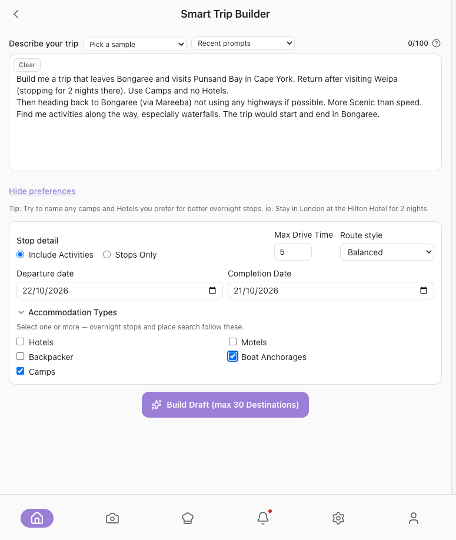
The other door: Smart Trip Builder
Trip / Route Planning → Smart Trip Builder.
Write Your trip request in plain language: where, when, who, how you are travelling, how long you want to drive, and the kind of beds (camps, hotels, a mix). Optional preferences add Departure date, Completion Date, Max Drive Time, Route style (Balanced, Scenic, Fastest), Accommodation Types (Hotels, Motels, Backpacker, Boat Anchorages, Camps), and Include Activities or Stops Only.
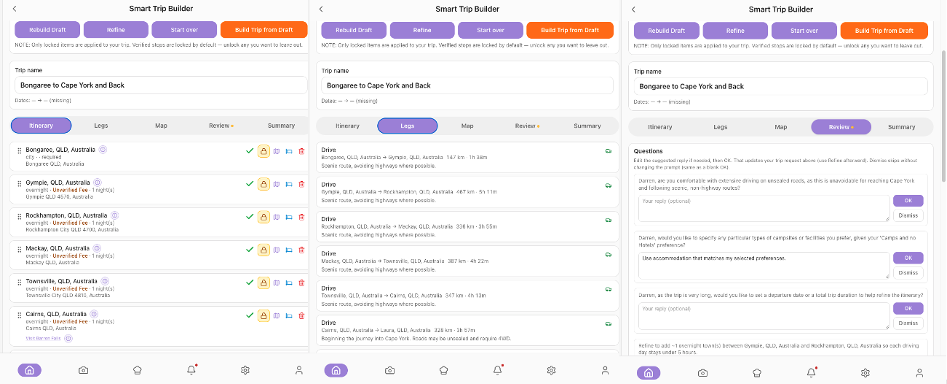
Build Draft asks PukuPlan to propose stops and a route. Treat it as a draft from an assistant who has not driven your roads. Check the places. Lock the padlock on stops you want to keep. Refine if you change the request and want the draft updated without losing locked stops. Build Trip from Draft turns the locked stops into a normal trip you can edit like any other.
Say important constraints in the request itself — caravan, dirt roads you want to avoid, pets, a park you already booked. Then confirm them with your own eyes on the draft.
3. Add stops the way you will drive them
Open the trip. Three tabs run the route:
- Itinerary — the list you edit.
- Map — the line on the map. Show camps reveals catalogue camps in view. Driving is the route that calculates.
- Summary — distance, time, fuel estimate, a short recap, the stops in a date table, and Open in Google Maps.
Add stop searches in three modes:
- Locations — free camps, camps, rest areas, station stays, and other catalogue places. Chips: Free, Camping, Rest Areas, Near Me, Filters. Filters cover state, region, distance, place type, Cost (Free, Low Cost, Paid, Donation, Permit Required, Unknown), and booking.
- Hotels — hotels, motels, and marinas for this trip only.
- Address — a street, a place name, or your validated Home address.
Set Arrive and Depart on every stop. Same place, later depart date, means you stayed longer. Drag the handle to reorder.
Stop actions include Edit Stop, Enter Fuel Cost, and Manage Activities. Activities belong to a stop. They are not extra towns.
Find Locations is the same search when you are only browsing, before you commit a place to a trip.
4. Make the driving days honest
Settings → Trip / Route:
- Fuel — Fuel L/100, Fuel cost per Ltr, optional Use Historic Avg., then Save fuel settings.
- Home address — type it, Validate, save.
- Towing weight guide — your vehicle and trailer figures, then Save towing weights. Status reads Within your entered figures or Review suggested. Planning help only.
Back on Summary, read the hours and the fuel estimate. Split any driving day that is too long with a rest area. Record real bowser prices later with Enter Fuel Cost so the historic average becomes yours.
5. Food: plan, shop, pantry
Meal Planning:
- Meal Planner → Meal Plans → Create schedule for the trip dates. Slots start as Breakfast, Lunch, and Dinner. Repeat simple meals. Add slot if you need snacks.
- Recipes — save what you cook, and add linked ingredients to a shopping list.
- Shop — Create shopping list, tick what you buy, choose Target pantry, Buy checked.
- Pantry — Pantry inventory, Expiring soon, Scan multiple items, Meal needs.
Settings → Pantry (Pantry Configuration) is where you Add pantry and rename them, for example Home and Van. Switch the active pantry before you scan or before Buy checked, or the food will be filed in the wrong place.
Pantry Meal Pick is how you choose dinner from what is actually in the active pantry once you are away.
6. Pack what this trip needs
Lists & Packing → My Trip Lists, or the trip menu’s packing action.
- Add from template for the common camping and holiday gear.
- Add custom item for the odd things.
- Import from meal schedule so the food matches the meals.
- Quantities, Mark pre-packed for the van’s permanent kit, Hide packed while you load, Clear all checked before the next departure.
Browse template catalog is there when you want to wander the list of common items and see what you have never owned.
7. Activities, then the leaving checks
Activities & Wishlist holds Wishlist Manager for places and activities you are not ready to put on a trip. On the trip itself, Manage Activities hangs a plan on a stop you are actually visiting.
Safety Check List is the last pass: tick what is true for this departure, add any line your setup needs, and use Towing Calc if you are towing.
Then open Summary one more time. If you can still say the trip in one sentence — when, how hard the driving days are, and where you sleep — you are ready to pack the vehicle and go.
A worked mini example
The trip. “Five nights up the coast in the caravan, home the following Friday. Drive in the mornings, no more than four hours, one free camp in the middle, parks on the long days.”
In PukuPlan.
- New trip, those dates, that sentence in Notes.
- Add stop for home, two caravan parks, one free camp from Locations with Free and Camping, and home again. Arrive and depart on each. A second night at the free camp is a later depart date, not a new stop.
- Summary: if a leg is over four hours, insert a Rest Areas stop.
- Fuel L/100 set for towing, so the fuel line means something.
- Meal Plans for six breakfasts of the same thing, simple lunches, three rotating dinners. Ingredients to Shop. Buy checked into a pantry named Van.
- Packing list from the template, van gear Mark pre-packed, Import from meal schedule.
- Safety Check List and Towing weight guide the day before.
- Open in Google Maps on the morning you leave.
That is the highlevel PukuPlan workflow to follow. The order is the part that makes it easier for you.